Articles ·
Making a phone easier to use with low vision
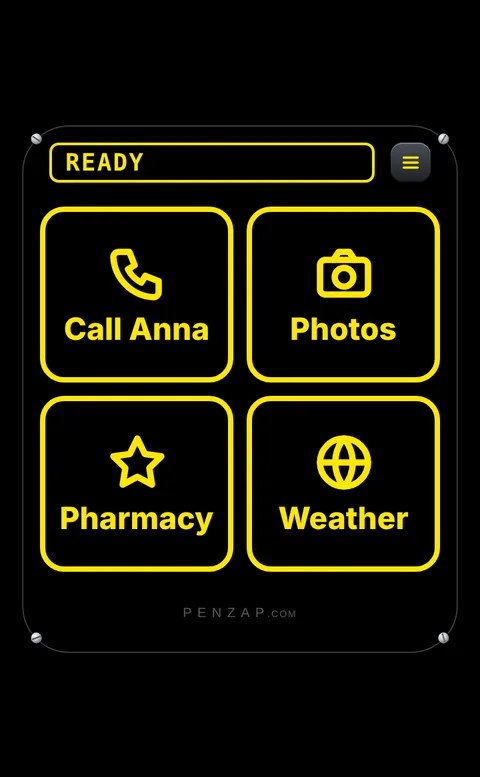
Cataracts, macular degeneration, glaucoma or just aging eyes can make a phone frustrating: tiny gray icons, thin text and a screen full of things you don't need. Phones have good accessibility settings built in, and a simple screen of big buttons covers the rest.
Step 1: bigger, bolder text
- iPhone: Settings → Display & Brightness → Text Size and Bold Text. For even larger text, Settings → Accessibility → Display & Text Size → Larger Text.
- Android: Settings → Display (or Accessibility) → Font size and Display size. Many phones also have Bold text there.
Step 2: more contrast
- iPhone: Settings → Accessibility → Display & Text Size → Increase Contrast. Smart Invert turns most of the screen dark without inverting photos.
- Android: look under Settings → Accessibility for High contrast text, Dark theme and Color inversion. The names vary a little by phone.
Step 3: zoom in, or let the phone read
- Zoom / Magnification enlarges any part of the screen: Settings → Accessibility → Zoom (iPhone) or Magnification (Android).
- Magnifier turns the camera into a magnifying glass for menus and labels. On iPhone it's a built-in app. On Android, many phones have one in the camera or accessibility settings, and Pixel phones can get Google's Magnifier app.
- Spoken content reads text aloud: Speak Screen on iPhone (Settings → Accessibility → Spoken Content), Select to Speak on Android.
- VoiceOver (iPhone) and TalkBack (Android) read everything on screen as you touch it. They take practice, so try them together first.
Step 4: one screen of huge buttons that talk
Settings make everything a bit bigger, but the home screen is still a grid of small icons. Penzap gives the 4–8 things they use most their own huge button, and it's free:
- High contrast: yellow-on-black or white-on-black buttons with huge labels, one or two per row.
- Talking buttons: each button says its name out loud when tapped.
- Press and hold to check: holding a button shows it full-screen and says what it does, before anything happens.
- Ask before it acts: "Call Anna?" with a big Yes and No, so a wrong tap doesn't call anyone.
- A sound and buzz for each button, so they can be told apart without looking.
- On their phone, open penzap.com (or get the Penzap app) and create a free account.
- Tap a button to edit it: type a short Label like Call Anna and set When tapped to Call a number.
- Open Easy to see and hear and turn on High contrast, Talking buttons and Ask before it acts.
- Tap Use. On the web, add Penzap to the home screen so it opens with one tap.
Small things that help
- Turn brightness up, and turn off Auto-Brightness if the screen keeps dimming.
- Set Auto-Lock or Screen timeout to a few minutes so the screen doesn't go dark mid-task.
- A matte screen protector cuts glare outdoors.