Articles ·
How to set a picture as your wallpaper on iPhone and Android
Changing your wallpaper takes less than a minute once the picture is in the right place. The most common snag is that a downloaded picture isn't in your Photos or Gallery yet, so we'll start there.
First: get the picture into Photos or Gallery
- iPhone: the wallpaper picker only shows pictures in Photos. From a website, press and hold the picture and tap Save to Photos. If you downloaded it instead, it's in Files → Downloads: open it, tap Share and choose Save Image.
- Android: downloads go to the Downloads folder, which Gallery and Google Photos show as an album. Pictures saved by an app usually get their own album.
iPhone
- Open Settings → Wallpaper → Add New Wallpaper.
- Tap Photos and choose your picture.
- Pinch to position it, then tap Add.
- Choose Set as Wallpaper Pair to use it on the lock screen and home screen, or Customize Home Screen to pick something different there.
You can also press and hold the lock screen, tap +, and pick a photo.
Android (Pixel and most phones)
- Press and hold an empty spot on the home screen.
- Tap Wallpaper & style (or Wallpapers).
- Choose My photos (or Gallery) and pick the picture.
- Choose Home screen, Lock screen, or both.
Samsung Galaxy
- Open Settings → Wallpaper and style → Change wallpapers.
- Under Gallery, pick the picture.
- Choose Lock screen, Home screen or both, then tap Done.
On most Android phones you can also open the picture in Gallery or Google Photos, tap ⋮ and choose Set as wallpaper.
Make a wallpaper that fits your screen
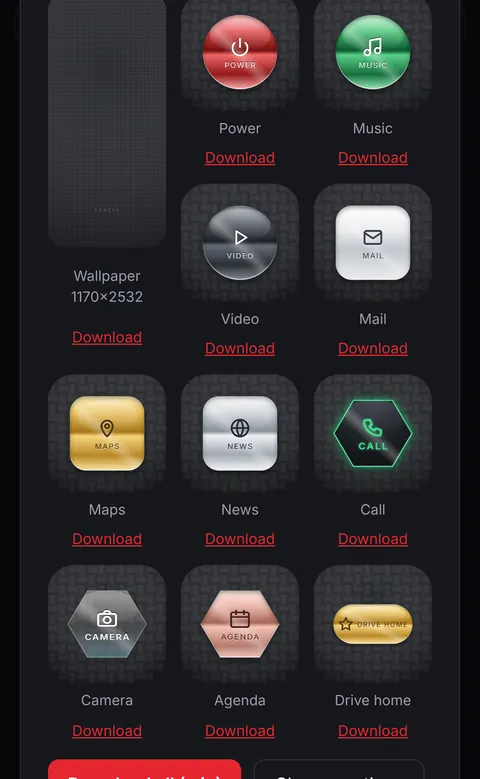
A picture with the wrong shape gets cropped or zoomed. Penzap's phone theme makes a wallpaper sized for your phone, plus matching app icons, from the remote you designed. Phone themes come with Penzap Pro. For icons, see how to change app icons.