Articles ·
How to make your own Roku remote on your phone
The official Roku remote has buttons you never press and is missing the ones you want, like a single tap for your favorite channel. With Penzap you design the remote yourself: big, clearly labeled buttons for Home, Play, volume and your channels, in the colors and shapes you like, next to your other phone shortcuts.
What you need
- Penzap Pro. Roku control is part of Pro. See Free vs Pro.
- The Penzap app on your phone. The Android app is in early access now. Roku buttons don't work on penzap.com in a web browser; see why below.
- Your phone and Roku on the same Wi-Fi. Not a guest network, and not mobile data.
- Phone control turned on in the Roku. Most Rokus allow it already; step 1 shows where to check.
Why it doesn't work in a web browser
A Roku listens for remote commands only on your home Wi-Fi. For your security, web browsers block websites from talking to devices on your home network. This rule is built into every browser and is beyond our control, so penzap.com in Chrome or Safari can't reach your Roku. The Penzap app runs on the phone itself, so it can. You can still set up Roku buttons on the website: they're saved to your remote and work as soon as you use it in the app.
Step by step
- On the Roku, allow phone control: Settings → System → Advanced system settings → Control by mobile apps → Network access → Default (or Permissive).
- Connect your phone to the same Wi-Fi as the Roku.
- Open the Penzap app. Optional: make a remote just for the TV with Menu → My designs → My remotes → + New remote, named "TV".
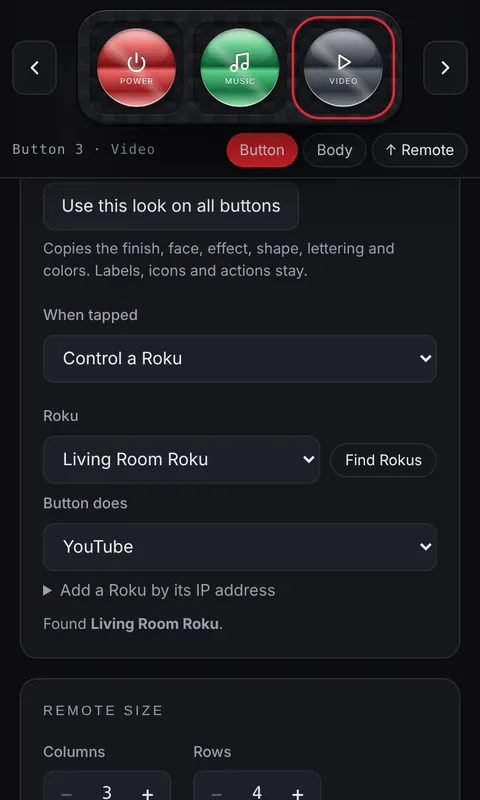
- Tap Edit, then tap the first button (or + on an empty slot). Set When tapped to Control a Roku.
- Tap Find Rokus. Your Roku shows up in the Roku list within a few seconds; choose it. If it isn't found, open Add a Roku by its IP address and type the address shown on the Roku under Settings → Network → About.
- Under Button does, choose the command, such as Home or TV power (toggle). Your Roku's own channels are listed under Channels on this Roku.
- Give the button a Label and an Icon so it's easy to spot.
- Repeat for each button. A layout that matches a standard remote is below.
- Style one button the way you like, then tap Use this look on all buttons.
- Tap Use and press a button. The screen at the top of the remote shows "Power → Living Room Roku" when it works.
A 12-button layout
| Left | Middle | Right |
|---|---|---|
| TV power | Home | Back |
| Volume down | Up | Volume up |
| Left | OK | Right |
| Play / pause | Down | YouTube (or your favorite channel) |
Want more? Add rows under Remote size, or turn on Big buttons (2× or 3×) for easier tapping, which is great for grandparents.
Which Rokus can do TV power and volume?
- Roku TVs (TVs with Roku built in, from brands like TCL, Hisense and onn.): power, volume, inputs and everything else work.
- Roku streaming players and sticks: Home, the arrows, OK, Play and channels work. TV power and volume don't work on some players, such as the Roku Express, because the player itself can't control the TV's power or volume. Use your TV's own remote for those.
One button, several Roku commands
A flow runs steps in a row. A "Movie night" button can turn on the TV, wait a moment and open your streaming channel. Roku steps run on their own, with no extra taps.
If something doesn't work
- "Can't reach the Roku · same Wi-Fi?" The phone and Roku are on different networks, the Roku is off, or it got a new address. Tap Find Rokus again.
- "Roku refused" Control by mobile apps is set to Limited or Disabled. Change it as in step 1.
- Find Rokus says it needs the Penzap app. You're on penzap.com in a browser. Open the Penzap app instead, or add the Roku by its IP address and use it in the app later.
- Power or volume does nothing. See the Roku Express note above.
Roku is a trademark of Roku, Inc. Penzap is an independent app and isn't made by or affiliated with Roku.