Articles ·
How to add a website to your home screen
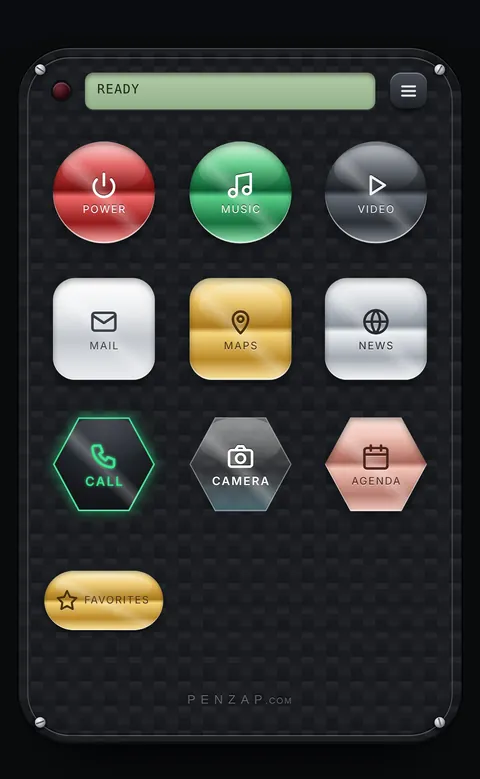
Websites you visit every day can live on your home screen as an icon, just like an app. No app store needed.
iPhone and iPad (Safari or Chrome)
- Open the website.
- Tap Share (at the bottom in Safari, at the top right in Chrome).
- Scroll down and tap Add to Home Screen, then Add.
Android (Chrome or Samsung Internet)
- Open the website.
- Tap the menu: ⋮ at the top right in Chrome, or ≡ at the bottom in Samsung Internet.
- Tap Add to Home screen or Install app, then Add or Install.
Many websites, one icon
If you have lots of favorite sites, one home-screen icon for each gets crowded. A Penzap remote holds them all as big, labeled buttons, along with your apps, calls and texts, behind a single icon. Get Penzap on your phone.