Articles ·
How to change app icons on iPhone and Android
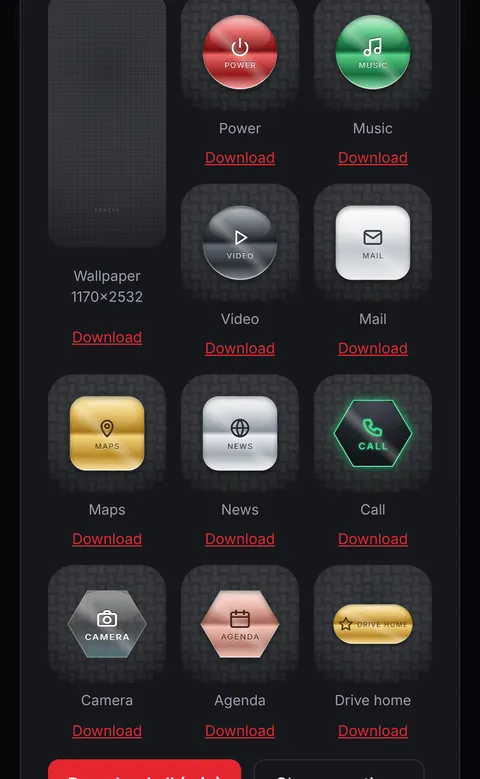
A matching set of icons and a wallpaper can make your phone feel brand new. Here's how custom icons work on each kind of phone, and how to make a set that matches.
Step 1: make your icons and wallpaper
Any square image works as an icon. With Penzap, design a remote in the finish you like (chrome, gold, glass, marble, neon…), then open Menu → My designs → Phone theme to get a wallpaper sized for your phone and an icon for every button. Phone themes come with Penzap Pro. Save the images to your phone's photos.
iPhone: custom icons with the Shortcuts app
- Open the Shortcuts app and tap + to make a new shortcut.
- Tap Add Action, search for Open App, and choose the app (for example Messages).
- Tap the shortcut's name at the top (or the share button), then Add to Home Screen.
- Tap the small icon next to the name, choose Choose Photo, and pick your new icon.
- Type the name you want under the icon and tap Add.
- Repeat for each app, then move the original apps to the App Library so only your new icons show.
iPhone may briefly show a small Shortcuts banner when you open an app this way. That's normal.
Android: it depends on your phone
- Some phones let you long-press an app or shortcut on the home screen and choose Edit to change its icon.
- Otherwise, install a launcher app (for example Nova Launcher) that lets you set a custom icon for any app.
- Set the wallpaper by long-pressing an empty spot on the home screen and choosing Wallpaper.
Or skip the icons: one remote for your favorite apps
Instead of rearranging dozens of icons, put the apps you use most on one Penzap remote with big, good-looking buttons, and add that to your home screen. For ideas, see aesthetic home screen looks or browse the Remote gallery.