Articles ·
How to organize your phone's home screen
Most people use about ten apps every day and scroll past dozens of others to find them. A tidy home screen saves time every time you unlock your phone.
1. Keep only your daily apps on the first screen
Look at what you actually open every day and give those the first screen. Everything else can go somewhere else.
2. Move the rest off the home screen
- iPhone: press and hold an app, choose Remove App → Remove from Home Screen. It stays in the App Library (swipe left past your last page). Settings → Home Screen & App Library → App Library Only keeps new apps off your home screen.
- Android: press and hold an app and choose Remove (not Uninstall). It stays in the app drawer (swipe up).
3. Use a few folders, named by what you do
Drag one app onto another to make a folder. Names like "Money", "Travel" or "Kids" are easier to scan than "Utilities".
4. Put your most-used apps in the dock
The bottom row stays on every page. Put your top four apps there.
5. Use widgets for things you check
Weather, calendar and reminders are faster as widgets than as apps. Press and hold an empty spot, then tap Edit → Add Widget (iPhone) or Widgets (Android).
6. Use search instead of hunting
Swipe down on the home screen (iPhone) or tap the search bar (Android) and type the first letters of an app's name.
7. One screen for apps, sites, calls and texts
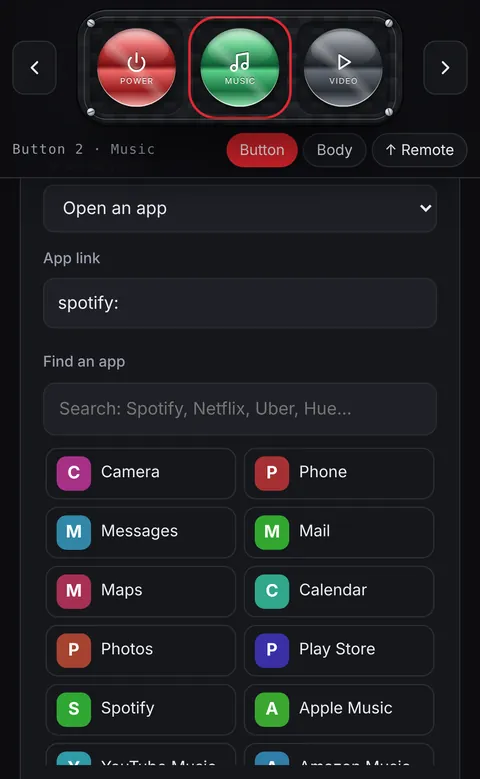
Many of the things you do every day aren't apps: a website you check, the person you text most, directions home. A Penzap remote holds all of them as big, labeled buttons behind one home-screen icon, and a flow can do several steps from one button. It's free to start.
Want it to look good too? See aesthetic home screen ideas.