Articles ·
Lost your Roku remote? How to control a Roku without it
The remote is in the couch, the dog chewed it, or the batteries are dead and the store is closed. You can still watch TV. Here are the options, quickest first.
1. Use your phone as the remote
Your phone can send the same commands as the remote over your home Wi-Fi. Two things need to be true:
- Your phone and the Roku are on the same Wi-Fi network.
- The Roku allows phone control: Settings → System → Advanced system settings → Control by mobile apps → Network access → Default. (If you can't reach that menu yet, it's usually already on.)
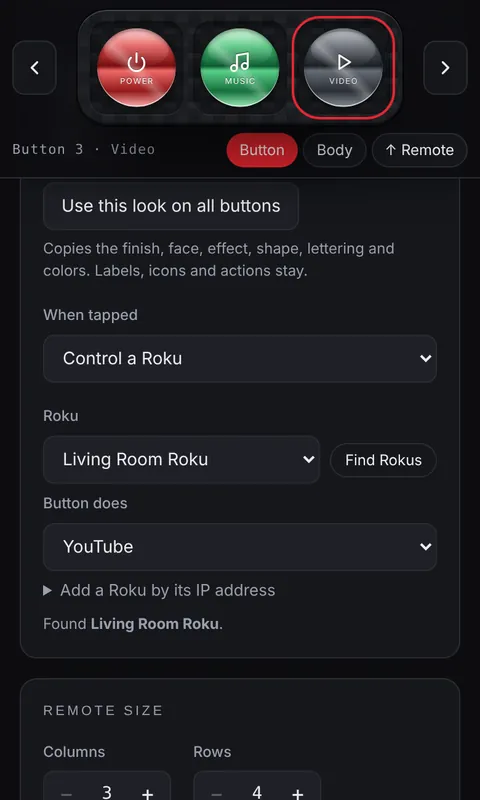
Roku's own free app has a full remote. With Penzap you can make your own instead, with only the buttons you use, big labels and one-tap buttons for your favorite channels. Our step-by-step guide: make your own Roku remote on your phone.
2. Use the buttons on the TV
Roku TVs (TVs with Roku built in, from brands like TCL, Hisense and onn.) have a small button or joystick on the back or underneath. It turns the TV on and off and usually changes the input and volume. Roku streaming sticks and players don't have these buttons.
3. Use your TV's remote
If you have a Roku stick or player, the TV's own remote may control it through HDMI-CEC (it's called Anynet+, Bravia Sync, SimpLink and other names). Turn it on in the TV's settings and try the arrow and OK buttons.
4. The Roku isn't on Wi-Fi (new home or new router)
A phone can only control a Roku that's on the same network. If you changed your Wi-Fi, a common trick is to make a phone hotspot with your old Wi-Fi name and password. The Roku joins it, and a second phone on that hotspot can control it long enough to switch the Roku to your new Wi-Fi. If that's not possible, you'll need a physical remote to set up Wi-Fi.
5. Get a replacement remote
Roku and many stores sell replacement remotes, and basic ones are inexpensive. Check whether your model uses an infrared remote (point at the box) or a "point anywhere" voice remote, which needs pairing.
Roku is a trademark of Roku, Inc. Penzap is an independent app and isn't made by or affiliated with Roku.