Articles ·
How to set up a simple phone for a parent or grandparent
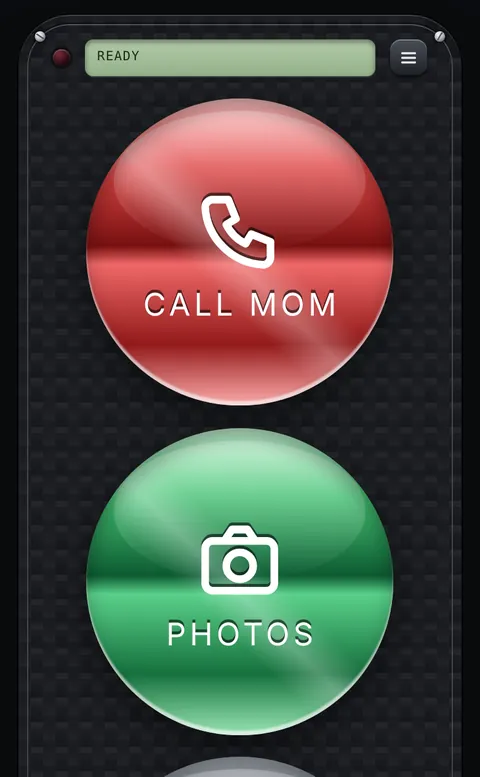
A smartphone can be hard to use when the icons are tiny, the text is small and there are dozens of apps. You don't need to buy a special phone. A few settings and one simple screen of big buttons go a long way.
Step 1: turn on the phone's own simple mode
- iPhone: Assistive Access (Settings → Accessibility → Assistive Access) replaces the home screen with a few large tiles. It's a big change, so try it together before you leave them with it.
- Samsung Galaxy: Easy mode (Settings → Display → Easy mode) makes icons and text larger and simplifies the home screen.
- Other Android phones: there's usually no single switch. Use the text and display size settings below.
Step 2: make everything bigger
- iPhone: Settings → Display & Brightness → Text Size (and Bold Text), and Settings → Accessibility → Display & Text Size → Larger Text.
- Android: Settings → Display (or Accessibility) → Font size and Display size. Turn both up a notch or two.
- Turn the screen brightness up and set Auto-Lock (iPhone) or Screen timeout (Android) to a few minutes, so the screen doesn't go dark while they're reading.
Step 3: one screen of big buttons for the people they call
The most important part is usually "call my daughter" or "video call the grandkids". With Penzap you make a screen with just those buttons, each with a short label in your own words, like Call Anna.
- On their phone, open penzap.com and create a free account.
- Tap Edit, tap a button and set When tapped to Call a number or Text a number. Type the number and a short Label.
- Add buttons for the apps they use: Photos, a video-call app such as WhatsApp or FaceTime, the weather.
- Keep it to 4–8 buttons. Fewer buttons means fewer mistakes.
- In Remote size, under Big buttons, choose 3× · 1 per row (or 2×). Big buttons are free.
- Tap Use, then add Penzap to the home screen. Opening it from that icon starts in Use mode, so buttons can't be moved by accident.
Step 4: put it where they'll find it
Move the Penzap icon to the bottom row of the home screen (the dock), and move rarely used apps into a folder or the App Library. If you're far away, sign in to their Penzap account on your own computer: changes you make show up on their phone.
Tips that make a difference
- Bright buttons on a dark background, like gold on carbon, are easiest to see.
- Use names, not numbers: "Call Anna" is clearer than "Anna mobile".
- Write the steps for anything else they need on a card and keep it by the phone.