Penzap · Big buttons for seniors
A big-button phone screen for seniors
Small icons and crowded home screens are hard to see and hard to tap. Penzap gives the people and apps that matter most their own big, clearly labeled button, like "Call Mom" or "Photos", up to three times larger than normal.
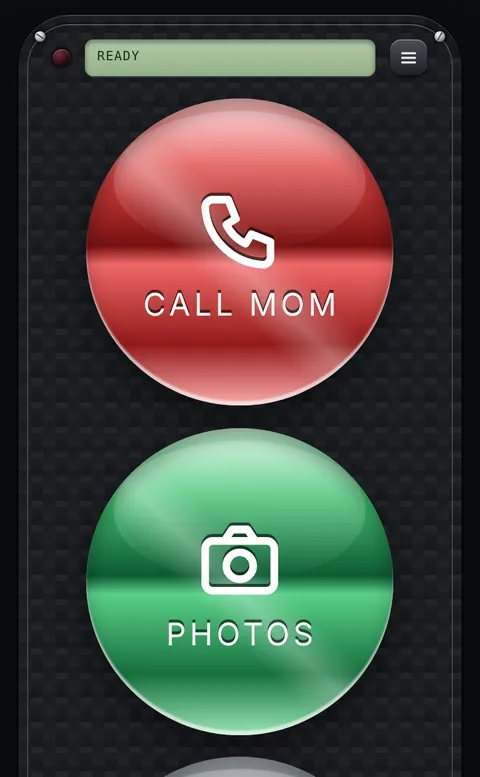
Why it helps
- Big buttons, big words: choose 2× (two buttons per row) or 3× (one per row). Labels and icons grow with them.
- Your own words on every button: "Call Anna", "Video call", "Pharmacy", "Weather".
- One tap does it: call or text someone, open a video-call app such as WhatsApp or FaceTime, open Photos, or go to a website.
- Big buttons are free: no purchase needed.
Set it up for someone (about 10 minutes)
- On their phone, open penzap.com and create a free account. You get a sample remote to start from.
- Tap a button, then Edit it: type a short Label, pick an Icon, and set When tapped, for example Call a number.
- Keep it to the 4–8 buttons they really use. Remove the rest with Delete, or leave them out of the way.
- In the Remote size panel, under Big buttons, choose 3× · 1 per row (or 2×).
- Tap Use, then add Penzap to their home screen. Opening it from that icon always starts in Use mode, so buttons can't be moved by accident.
- Need to change something later? Sign in to their account on your own computer: changes show on their phone automatically.
Tips
- Bright finishes on a dark body, like gold or red on carbon, are easiest to see.
- Put a photo of the person on their call button: see the photos on buttons guide.
Step-by-step guides
Photos and patterns on buttons comes with Penzap Pro. See Free vs Pro