Articles ·
Talking buttons: hear what you tap
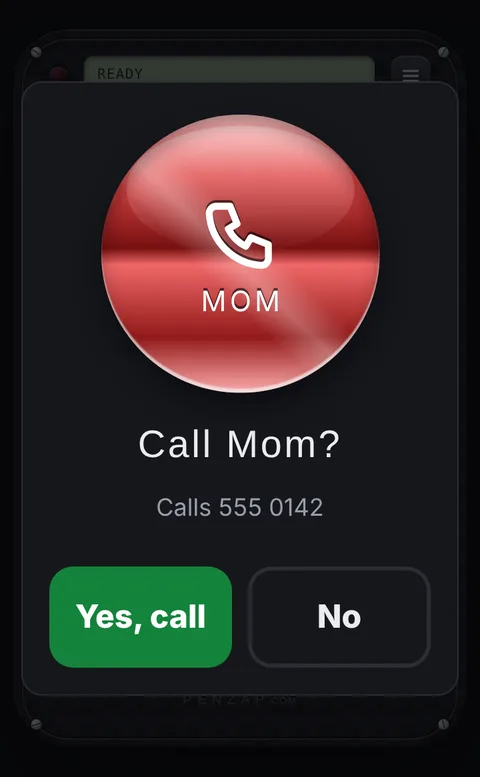
If you can't read the screen well, every tap is a guess: was that Mom or the doctor? A screen reader like VoiceOver or TalkBack reads everything, but it changes how the whole phone works. Often all someone needs is for the buttons they use every day to speak.
What talking buttons do
- Say the name of a button out loud when it's tapped, like "Anna" or "Pharmacy".
- Press and hold to check: hold a button and it fills the screen and says what it will do, like "Call Anna?". Nothing happens unless you tap Yes.
- Ask first: for calls and texts, show "Call Anna?" with a big green Yes and a big No.
- Sound and buzz: give every button its own note and vibration pattern, so you learn them by ear and by feel.
Set them up in Penzap (free)
- Open penzap.com on the phone, or get the Penzap app, and make a free account.
- Tap Edit, tap a button, type a short Label and choose what it does, for example Call a number. Labels are what gets spoken, so use names: "Anna", not "Mobile 2".
- Open Easy to see and hear and turn on Talking buttons. Add Press and hold to check and Ask before it acts if wrong taps are a worry.
- Pick a Voice speed: slow, normal or fast. Tap Hear a test to check the volume.
- Tap Use and try each button together.
On Android, the voice needs the latest Penzap app from Google Play. On iPhone and in a web browser it uses the built-in voice. If you hear nothing, check that the volume is up.
With VoiceOver or TalkBack
Penzap buttons also work with screen readers: each button tells VoiceOver or TalkBack its name and what it does, like "Anna, calls 555 0142". You don't need to turn on Talking buttons as well; the screen reader does the talking.
Setting it up for someone else
The settings are saved with the remote, not the phone. Sign in to their Penzap account on your own phone or computer to change a number or add a button, and it shows up on theirs.